How to get the most out of ListenUp on your iPhone
Florentijn Marinissen
How to get the most out of ListenUp on your iPhone
Learn how to use ListenUp Dictation on your iPhone, from setup and dictation to Smart Mode prompts and Personal Dictionary tips for faster writing in any app.
Your iPhone just got a whole lot smarter — and your day a whole lot easier.
If you’re new to ListenUp, this guide will help you get started, understand how it works, and use it more effectively in everyday life. ListenUp turns your iPhone keyboard into an AI writing tool you can use across your favorite apps.
That means you can speak, write, plan, and create wherever you normally type: in email, notes, messages, documents, social apps, and more.
What ListenUp does
ListenUp is designed to make writing on your iPhone faster, easier, and smarter.
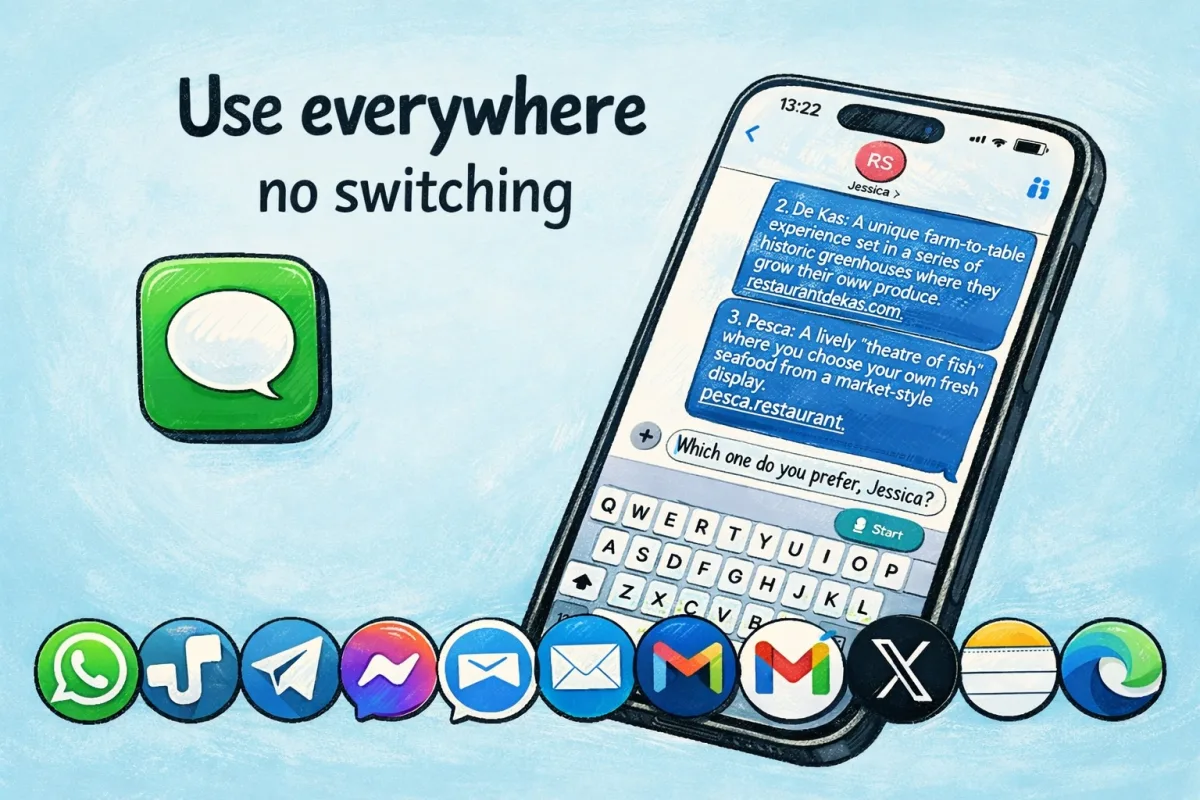
Instead of being limited to one app, ListenUp works through its own keyboard. Once you enable the ListenUp keyboard and allow microphone access, you can use it in the apps you already rely on every day.
So rather than opening a separate tool every time you want help, ListenUp comes with you wherever you write.
Anywhere you can type, ListenUp is there to help.
How ListenUp works on iPhone
The easiest way to think about ListenUp is this: it becomes part of your normal typing experience.
Once it’s set up, you can open any app with a text field, switch to the ListenUp keyboard, and start using your voice right there. You can dictate naturally, use Smart Mode, and turn ideas into polished text without breaking your flow.
That’s what makes ListenUp so useful on iPhone. It fits into the way you already work instead of asking you to learn a whole new workflow.
How to set up ListenUp
Getting started only takes a minute.
To use ListenUp on your iPhone, make sure you:
- Open the ListenUp app
- Allow microphone access
- Enable the ListenUp keyboard
- Switch to the ListenUp keyboard when you’re in another app
- Activate ListenUp via the teal Start button
Once that’s done, you’re ready to use ListenUp across the apps where you normally type.
Where you can use ListenUp
One of the biggest advantages of ListenUp is that it works across your iPhone, not just inside one app.
You can use ListenUp in places like:
- Mail and email apps
- Notes apps
- Messaging apps
- Document editors
- ChatGPT
- CRM tools
- Team communication apps
- Social apps
- Anywhere else you normally type
That means you can bring AI and faster writing into the tools you already use every day.
Powerful ways to use ListenUp
Dictation Mode
Dictation Mode helps you turn speech into polished text in seconds.
Just speak naturally. ListenUp adds punctuation, removes filler words, and helps clean up what you say as it turns your voice into text. You don’t need to speak like a robot or overthink every sentence. Just talk the way you normally would.
Perfect for:
- Quick replies
- Notes
- Email drafts
- Brain dumps
- Capturing ideas before they disappear
Did you know? Dictating with ListenUp can help you write up to 4x faster than typing.
Smart Mode
Smart Mode helps you do more than just dictate.
To use it, simply start your sentence with “ListenUp” and then say what you want it to do. You can ask it to write, draft, organize, summarize, brainstorm, or expand your ideas — right inside the app you’re already using.
The best part? You don’t need to learn complicated commands. Just ask naturally.
Use Smart Mode to:
- Draft emails
- Write messages
- Turn rough notes into something more structured
- Brainstorm ideas
- Create plans and lists
- Summarize information
- Generate content from a simple instruction
Personal Dictionary
Personal Dictionary helps ListenUp understand your language better.
You can add names, acronyms, abbreviations, and terms you use every day. This is especially useful if you work with client names, company terms, internal shorthand, product names, or industry-specific language.
The more ListenUp understands the words that matter to you, the more natural and accurate it becomes.
Your Personal Dictionary is a simple but powerful way to make ListenUp feel more tailored to your world.
How to get better results
A few simple habits can make a big difference when using ListenUp.
Speak naturally
You don’t need to slow down too much or pronounce every word in an exaggerated way. In most cases, the best results come from speaking the way you normally would.
Start before your thought is perfect
A lot of people wait until they know exactly what they want to say. You don’t have to. ListenUp is great for rough thoughts, half-finished ideas, and messy first drafts. Getting it out is the most important step.
Start with “ListenUp” and ask naturally
When using Smart Mode, simply start your sentence with “ListenUp” and then describe what you want. The clearer you are, the more useful the result usually becomes.
A good Smart Mode request often includes:
- Who it’s for
- What you want to say or create
- The tone you want
- Any details that should be included
Add important words early
If there are names, acronyms, or terms you use often, add them to your Personal Dictionary early on. That gives you a better experience right away.
Use it in real life, not just as a test
The best way to understand ListenUp is to use it in situations that already matter to you. Reply to a real email. Capture a real idea. Draft a real message. That’s when the value becomes obvious.
Smart Mode prompt ideas to try
To use Smart Mode, start your sentence with “ListenUp” and then say what you want help with. The more context you give, the better Smart Mode can help. You don’t need to sound formal — just be clear about what you want.
Examples
- “ListenUp, write a message to Emma asking if she wants to have dinner tomorrow night.”
- “ListenUp, write a friendly follow-up email to the client thanking them for the meeting and confirming that I’ll send the proposal tomorrow.”
- “ListenUp, create a clear meeting recap with the main decisions and action points.”
- “ListenUp, turn the following thoughts into a structured plan for the week.”
- “ListenUp, write a WhatsApp message to my team asking who is available for a quick call this afternoon.”
- “ListenUp, write a message to the family group asking who’s bringing what on Sunday, and tell them I’ll take care of the drinks.”
- “ListenUp, turn these loose thoughts into a clear message for the group chat.”
- “ListenUp, ask Mom if she wants to bake pancakes tomorrow morning. Add a recipe and make sure there is a shopping list with the right ingredients for 4 people.”
- “ListenUp, write a warm thank-you message I can send after the event.”
- “ListenUp, create a packing list for a two-day work trip to Berlin.”
- “ListenUp, write a short announcement for the team about the new launch.”
- “ListenUp, help me brainstorm three ideas for a LinkedIn post about working more efficiently with AI.”
- “ListenUp, turn this brain dump into a clear outline for a blog post.”
- “ListenUp, make a simple to-do list based on everything I’m about to say.”
- “ListenUp, write a concise email asking for feedback before Friday.”
Best ways to use ListenUp throughout the day
ListenUp works best when it becomes part of your everyday flow. Here are a few moments where it can make a big difference.
When you’re on the go
If an idea hits you while walking, commuting, or moving between meetings, it’s often easier to speak it than type it. ListenUp helps you capture it before it’s gone.
When you need to reply quickly
Instead of typing out every email or message by hand, you can speak your reply naturally and move on faster.
When your thoughts are messy
Sometimes you know what you want to say, but it isn’t organized yet. ListenUp helps you get the idea out first and shape it after.
When typing feels slow
Longer messages, notes, and drafts often take more effort on iPhone. Speaking can feel much faster and more natural.
When you want AI right where you work
Because ListenUp works across your favorite apps, you can bring AI into your actual workflow instead of treating it like a separate destination.
Common mistakes to avoid
Most people get the hang of ListenUp quickly, but these are a few things worth avoiding.
Only using it inside the app
The real power of ListenUp is that it works across your iPhone. Make sure you try it in the apps where you already spend your time.
Forgetting keyboard or microphone access
If something isn’t working, check that the ListenUp keyboard is enabled and that microphone access is allowed.
Speaking too carefully
You don’t need to overperform your dictation. In most cases, natural speech works best.
Ignoring the Personal Dictionary
If you use specific names or work terms often, adding them can make a huge difference.
Keeping Smart Mode too vague
Smart Mode works best when you give it a clear task. A little extra context often leads to a much better result.
Why ListenUp feels different
There are plenty of tools that let you dictate or use AI in one place. ListenUp is different because it comes with you.
It works across your iPhone, inside the apps you already use, and helps reduce the friction between thinking and writing. Instead of jumping between tools, copying text back and forth, or starting from scratch, you can simply use ListenUp where you already are.
That means less effort, faster writing, and a more useful iPhone overall.
A good place to start
If you’re brand new to ListenUp, just start simple.
Try one real task today:
- Reply to an email
- Capture a quick idea
- Write a note after a meeting
- Draft a message
- Try one Smart Mode prompt in an app you already use
That’s usually all it takes to feel the difference.
Ready to try it?
Your iPhone just got a whole lot smarter. Now it’s time to put it to work.
Happy dictating!